02 / Visual review
How to make a contact sheet from a video
Turn one clip into a timestamped grid you can review, share, or keep with an archive. Choose a layout that makes the frames useful, not just numerous.
Quick answer: choose a browser-playable video in the Contact Sheet Generator. Select 12, 24, or 48 frames, choose columns, and keep timestamps on. Generate the sheet, review the preview, then download one PNG or JPEG.
A visual index of one clip
A video contact sheet combines sampled frames into one image. Use it to check the main parts of a recording, attach a visual reference to a bug report, or identify footage in an archive without reopening the video.
It differs from a photo contact sheet: the input is one video, not a folder of photographs. It also differs from a ZIP of extracted frames: the grid is already arranged for review. For separate stills, use interval frame extraction.
A grid from existing footage can serve as a reference storyboard. It does not generate new shots, understand the story, or automatically select the most important scene.
Choose frames and columns together
More frames show more sampling positions. More columns make each frame narrower at the tool's fixed 1280-pixel output width. Choose based on what you need to see. These are layout suggestions, not a guarantee of scene coverage:
| Starting layout | Useful for | Tradeoff |
|---|---|---|
| 12 frames, 4 columns | A compact, three-row overview | Short events can fall between samples |
| 24 frames, 4 columns | More timeline detail in six rows | The full sheet is taller |
| 48 frames, 6 columns | A denser, eight-row index | Small text and cursor details are harder to read |
For footage with fine text, try fewer columns before adding more frames. Keep timestamps when you want to return to a moment in a player. They label requested positions; they are not proof of the exact source frame time.
Create and download the grid
- Open the Video Contact Sheet Generator and choose a local video up to 1 GB. Start with a browser-playable H.264 MP4.
- Choose Frames and Columns. The default is 24 frames in 4 columns; change it to fit your review.
- Select PNG or JPEG under Image format. PNG avoids additional lossy image compression. Neither format restores details lost in the source video or in resizing.
- Keep Include timestamps selected if positions matter.
- Select Generate contact sheet. Review the preview and select Download image.
- If you change the settings, generate a new sheet. The settings do not change an existing preview or download.
The original video is not uploaded. Page assets, analytics, and error reporting can make separate network requests. Loading an unused page without a connection is not guaranteed. See the processing and privacy limits.
Read the 20-second example
Our test recording shows a release checklist, cursor movement, upload progress, and static pauses. We generated this actual output in desktop Chrome with 12 frames, 4 columns, timestamps on, and PNG output:
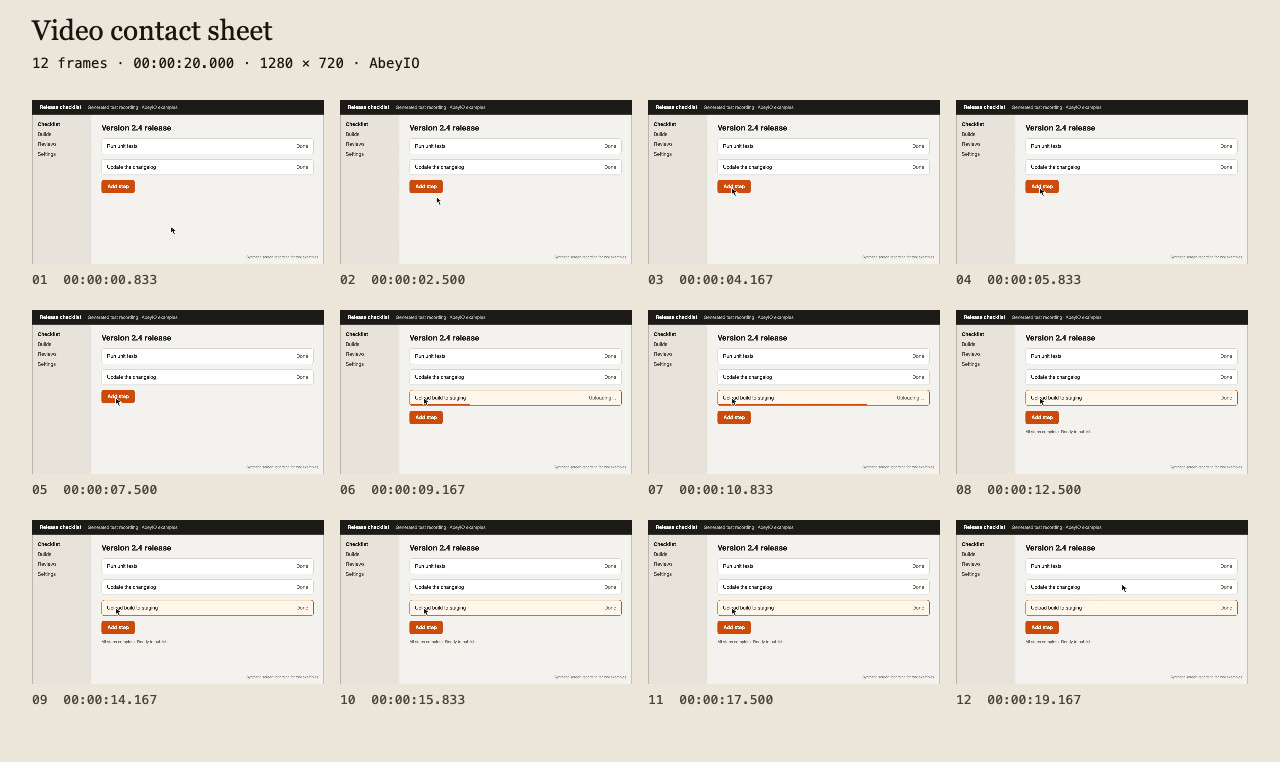
Contact-sheet positions are centered in equal time segments. Divide the duration by the frame count to find the spacing. For this 20-second clip and 12 frames, the spacing is about 1.667 seconds; the first position is half that spacing from the start.
The first frames show the checklist, the middle includes upload progress, and later frames show the completed state. Some images repeat because the recording has static pauses. Those repeats help show how much sampled time contains the same view; the tool does not remove them.
Download the original 20-second MP4 and try the same settings. Different browser seeking can select different displayed frames near a transition.
What the sheet can miss
Even spacing is not scene detection. A brief dialog, a fast cut, or a small cursor movement may fall between samples or be too small to read. Use the sheet to find positions worth reviewing, then play the original video. Do not treat a missing image as proof that an event never happened.
The sheet is 1280 pixels wide, not a set of full-resolution stills. Frames retain their proportions inside grid cells; some aspect ratios leave borders. For detailed inspection, export individual images with Frame Extractor at original width.
The browser must decode and seek within the file. This tool does not use the extractor's extra software decoder or tone-map HDR. Detected PQ/HLG HDR is rejected. If a video will not load, check its codec and file details, then read the troubleshooting notes.
Technical reference: MDN's media seeking documentation, checked 27 October 2026.